
A little lantern is a good first Blockbench project. It has an obvious job, a shape you can recognize from a distance, and just enough pieces to practice without getting lost in a huge creature model. We built one in Blockbench’s web editor, then brought its appearance into a separate Minecraft world.
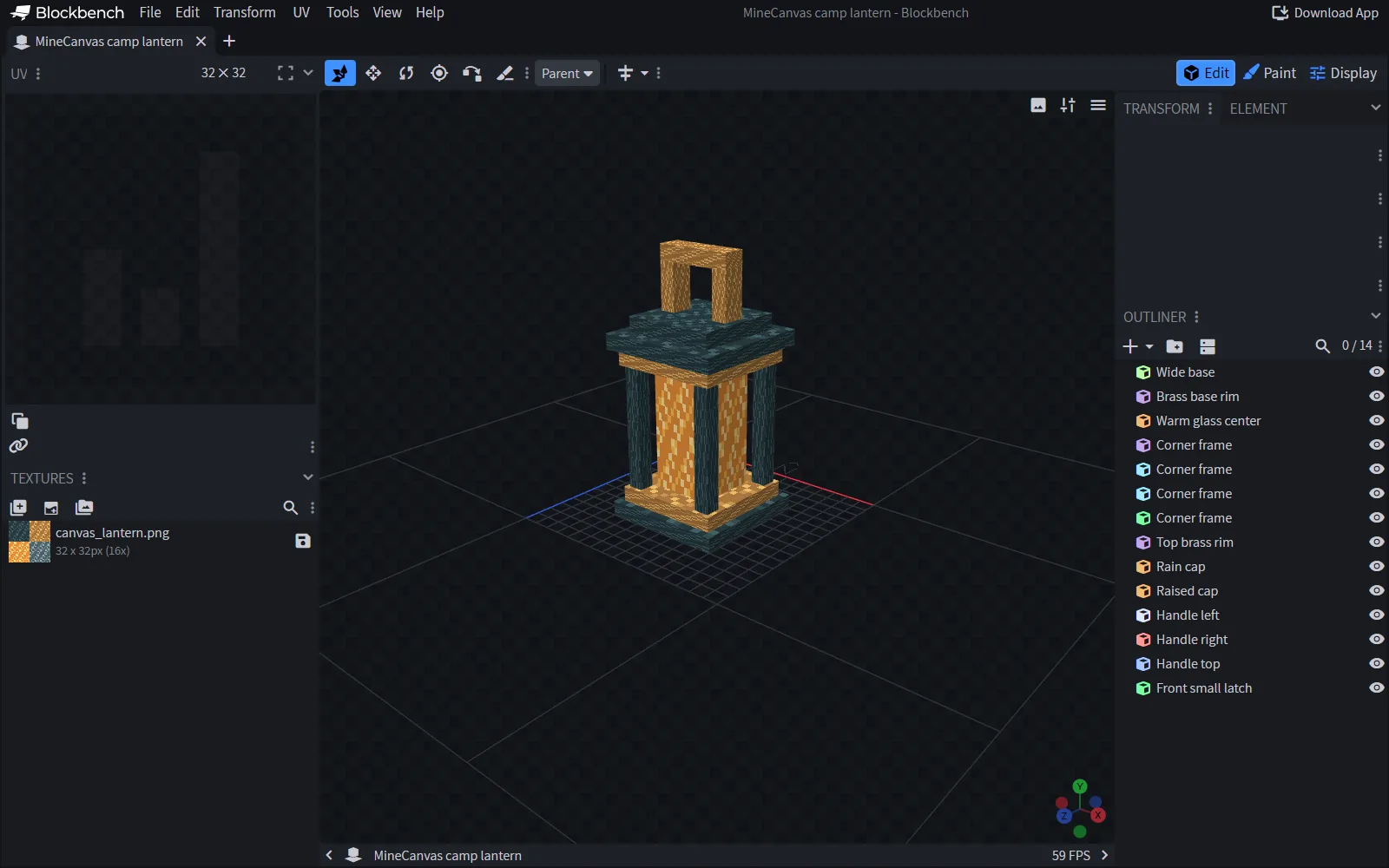
A small original lantern in Blockbench’s web editor. Keep the editable project as well as the export.
Choose where the model will live
Start with File → New → Java Block/Item for a Java block model like this one. A Bedrock creature needs a different project format and a matching add-on around it. Choosing the destination first saves you from finishing a model that cannot export the way your game expects.
You can open the official web editor without installing a desktop application. Save your editable project locally as you work; a browser tab is not a backup. Blockbench’s desktop app is another option on the tool’s official site.
Build the silhouette before the little details
Our lantern uses a wide base, a warm center, four narrow corner posts, a rain cap and a handle. Start with those larger shapes. Rotate the view after adding each part: a front view can hide a gap or a post that sticks out too far.
Keep the center visible between the posts. If every frame piece is as thick as the glowing section, the object starts looking like a solid crate. The handle should read clearly above the cap without becoming the biggest part of the lantern.
The small latch is a finishing detail. It is useful close up, but the model should already look like a lantern before you add it. This is a good test for any first prop: zoom out until it is about the size you expect to see in the game, and check whether its purpose is still obvious.
Use a small, readable palette
We made a 32 × 32 pixel texture with dark teal framing, brass-colored trim and a warm orange center. Those three main color groups separate the parts even at a small size. A few brighter pixels give the surfaces variation without turning every face into noise.
Create a texture, apply it to the cubes, and inspect the faces in the UV view. If a post turns orange when you wanted a dark frame, check which part of the image that face uses. Painting the entire image again will not fix a face pointing at the wrong patch.
Save the texture PNG alongside your project. Keep names simple and consistent so the exported model can find the image where your resource pack expects it.
See the scale in an actual scene
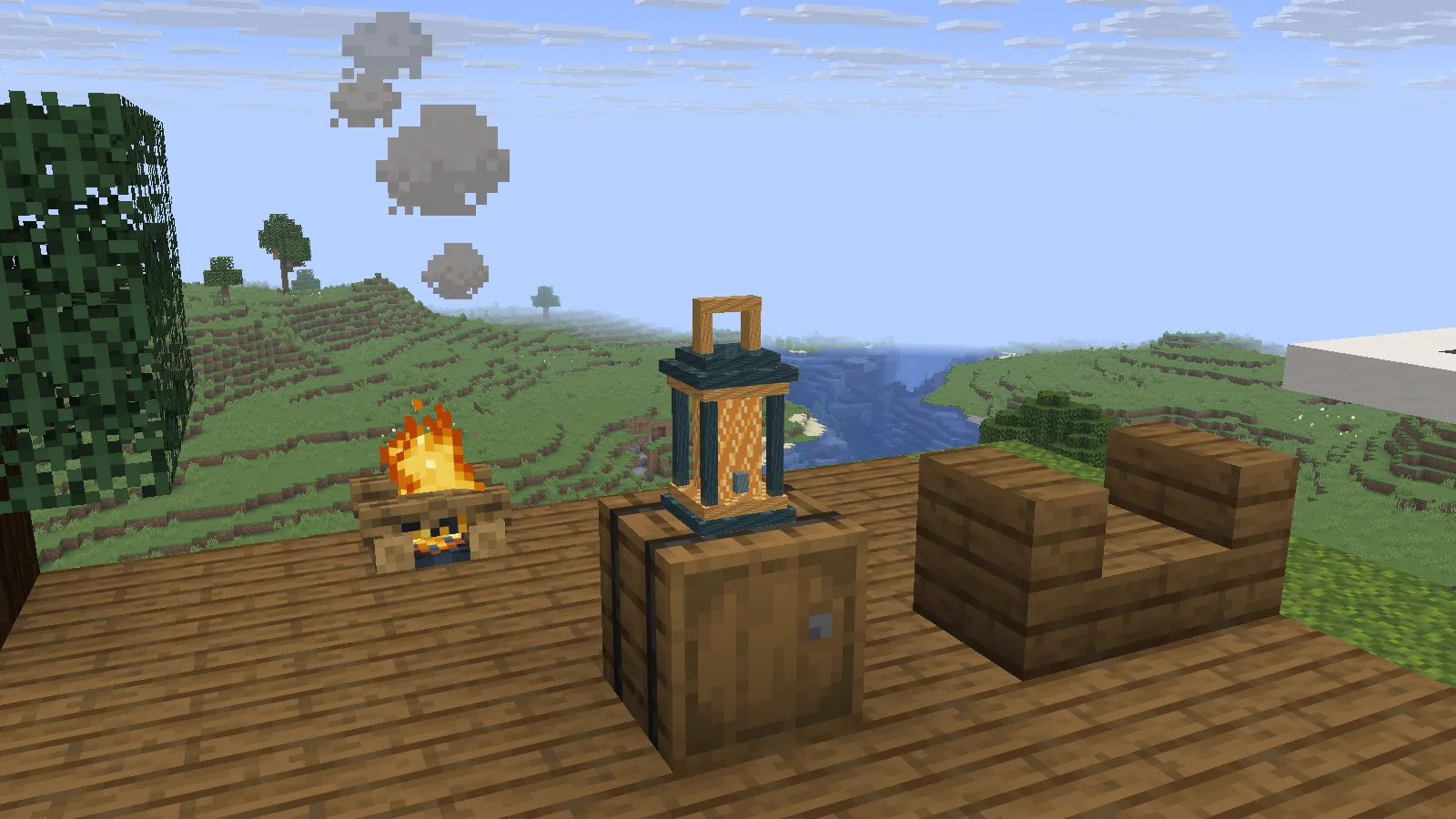
The model in Minecraft. The vanilla lantern still supplies the light and behavior.
For our local exercise, the exported model replaces the appearance of a standing vanilla lantern in Java 26.2. The ordinary lantern supplies its existing behavior and light. The model does not create a new crafting recipe, custom block or lighting system by itself.
Look at the prop beside other blocks before adding more detail. Is the handle legible? Does the base fit the surface? Can you still read the warm center from a few steps away? A useful second pass fixes those things before adding scratches that nobody can see at game scale.
Save the source and the game export separately
Use Save Project to keep the .bbmodel. That is the version you return to for edits. Export the Java model JSON and texture PNG for the resource pack. A finished JSON sitting in Downloads does not install itself: the pack needs the correct model path and the texture referenced by that model.
For this kind of replacement, the standing lantern model lives under assets/minecraft/models/block/lantern.json. Our texture lives under our own namespace, assets/minecanvas/textures/block/canvas_lantern.png, and the model points to minecanvas:block/canvas_lantern. Those paths describe this exercise; choose the proper target for your own model.
If the texture is missing in game, compare the model’s texture reference with the PNG’s location and capitalization. If only a hanging lantern looks unchanged, remember that we replaced the standing model. Different block states can use different models.
What to try next
Make a second color variation, or shorten the handle and see how it changes the silhouette. Keep the first working export before trying a larger change. For a new item with its own behavior, use a surrounding project such as our Fabric starting guide. For a Bedrock creature, the Add-On Starter shows how artwork and behavior connect.
Blockbench is by JannisX11 and contributors. The practice lantern, pixel texture and walkthrough on this page are Modonix’s own exercise, not an asset bundled with Blockbench.
Use this tool
This resource is hosted on its own website.
Open tool ↗www.blockbench.net
Comments & questions
Share what worked, ask for help or reply to another player.
No comments yet. Share what worked for you.