
WorldPainter gives you a landscape to build on before you place the first wall. Our Harbor Island example starts with one rocky hill and a continuous shore, then opens a bay on the eastern side and reserves a level patch for a small waterfront building. The editable area is 512 by 512 blocks: large enough to separate the hill, beach and harbor, while keeping the whole design visible in one overview.
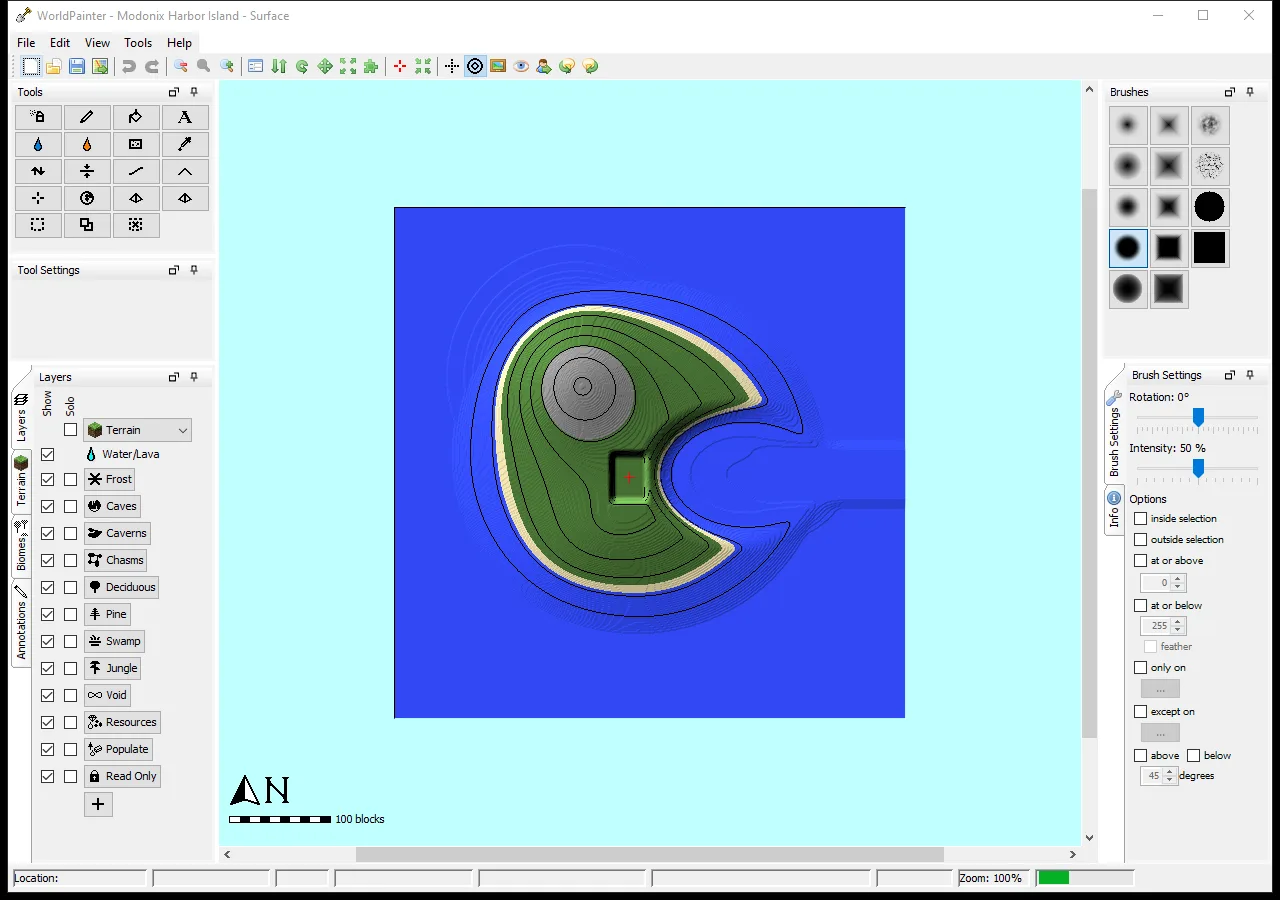
The completed 512×512 original island in WorldPainter: east-facing inlet, west-side landing and separate rocky hill.
Open an editable example
In Files, download the Modonix editor project example ZIP. Extract it, then open Modonix Harbor Island.world in WorldPainter 2.27.1 and save your own copy. The companion Before Bay project gives you the earlier shape to compare. We created these original terrains from our own 16-bit heightmaps through WorldPainter's scripting API, then opened the saved projects in the real editor. The project bundle includes both heightmaps and the script, so you can keep editing the terrain or reproduce the export.
The .world file holds the editable landscape recipe. Exporting turns that recipe into Minecraft blocks. Keep the project even after making an export: widening a bay or moving a hillside is much easier when the terrain remains editable.
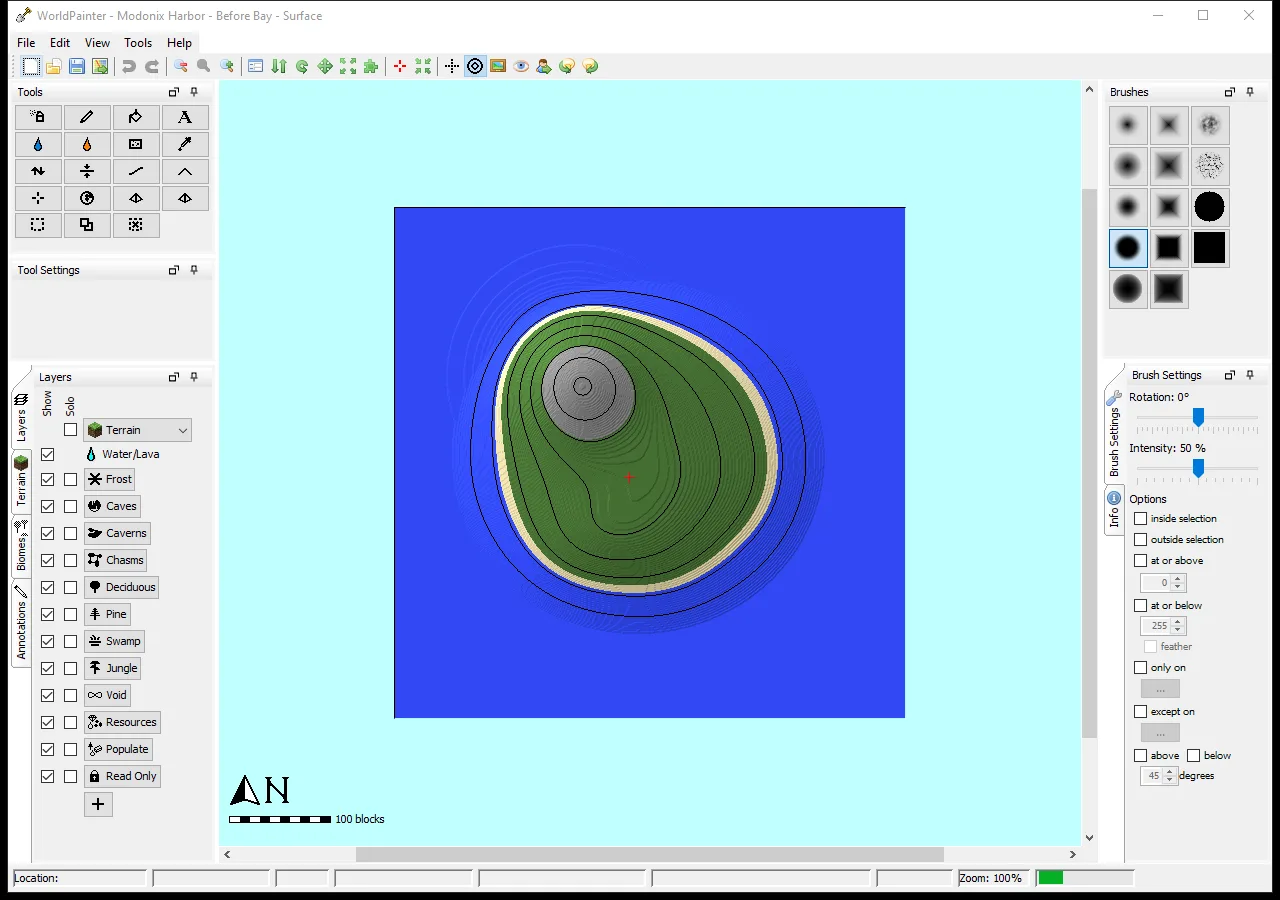
The original island before the bay and landing were added, shown in the same WorldPainter overview.
Give the shoreline a purpose
Begin with the places your build needs. Here those are a water entrance from the east, an open landing on the western side of the bay and a hill that remains separate from the waterfront. The initial island has no entrance. In the final version, the inlet cuts through the shore while the main hill stays in place. Compare the two outlines before adding trees, houses or decorative layers; the shoreline should already explain where a player would arrive.
The export starts at X235, Y68, Z270, above the landing. Use that area to plan steps or a ramp down to a future pier.
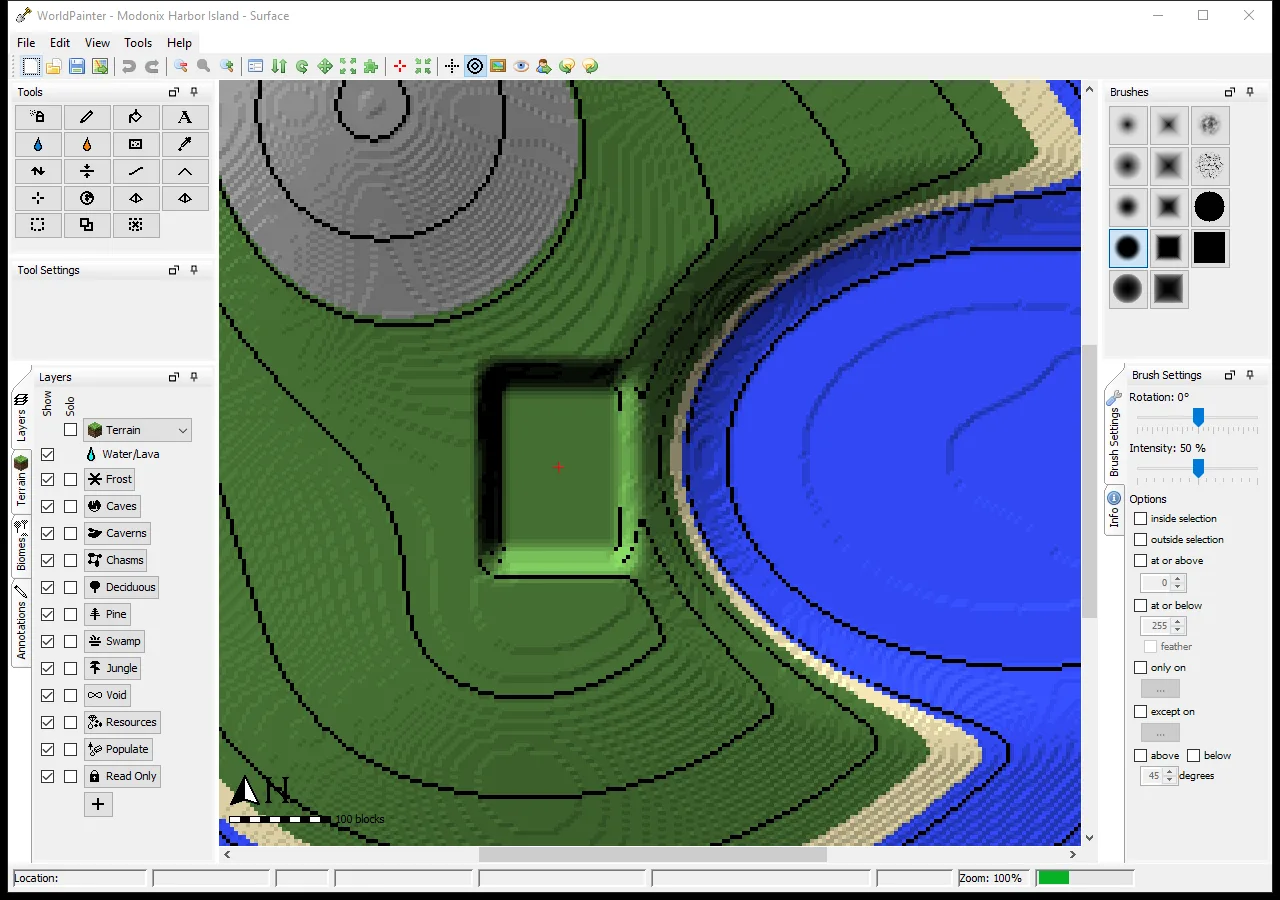
The landing is flat at Y67 in its central area; closely spaced contours show the steep slope behind it.
Leave room around the landing
The close-up shows why a flat building pad needs more thought than simply flattening a rectangle. Our pad has steep ground behind it. You could use that edge for a retaining wall, or reshape one side into a gentler approach. Leave enough level space around your intended building for a doorway, a path and a view of the water. When changing the slope, watch the contour spacing: closely packed lines mark a faster height change.
We kept the surface palette simple. Grass covers the main land, sand follows the lower shore, and rock marks the high ground. Changing a terrain material changes the blocks used at the surface; reshaping tools change the height. Keep those two decisions separate when a beach looks wrong: first check its level, then its material.
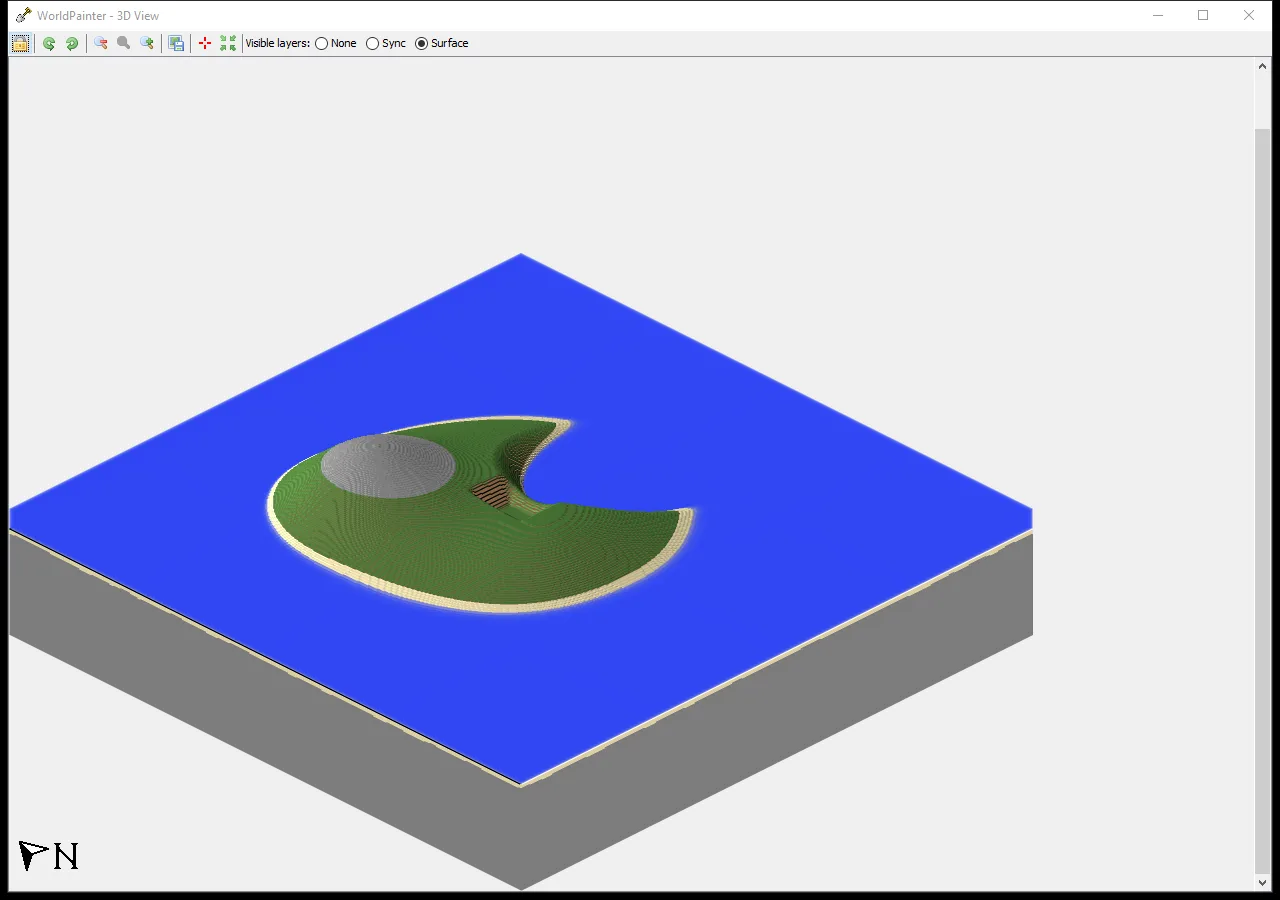
WorldPainter’s own 3D View shows the completed terrain shape and shore. This is an editor preview.
Compare the editor preview with Minecraft
WorldPainter's 3D View makes the hill, inlet and landing easier to compare in elevation. Use it to inspect your edited project before exporting. This view is the editor's terrain preview; it is useful for judging the landform and the space reserved for a build.
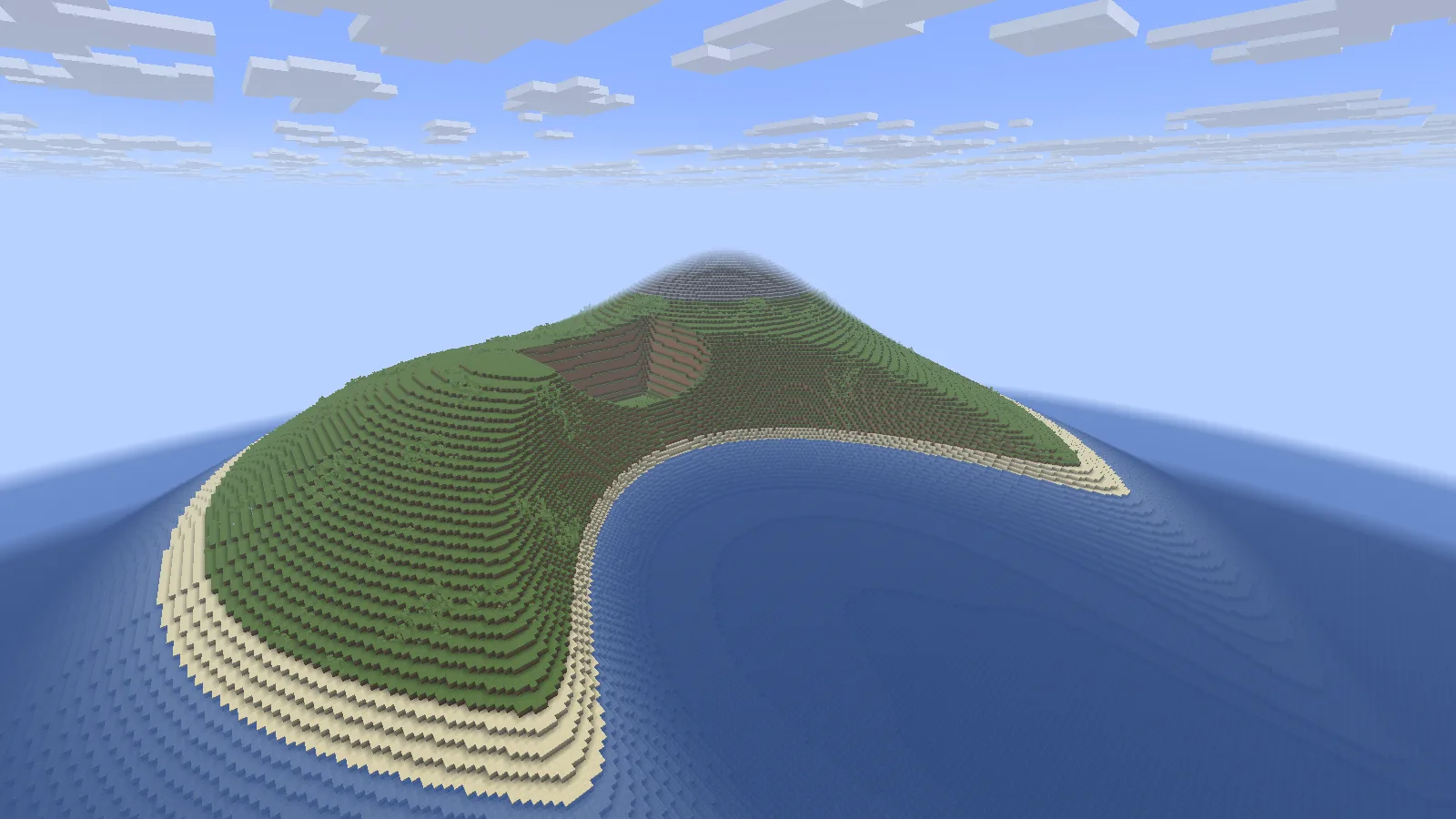
The original Harbor Island terrain after loading in Java 26.2. Java 26.2, viewed in Spectator with default resources.
In Minecraft, the same curved inlet becomes a stepped sandy shore below the grassy slopes. The rectangular terrace is recessed into the hillside, with the rocky summit behind it. That makes the relationship between a waterfront building and the higher ground easier to judge than it is from the flat editor view.
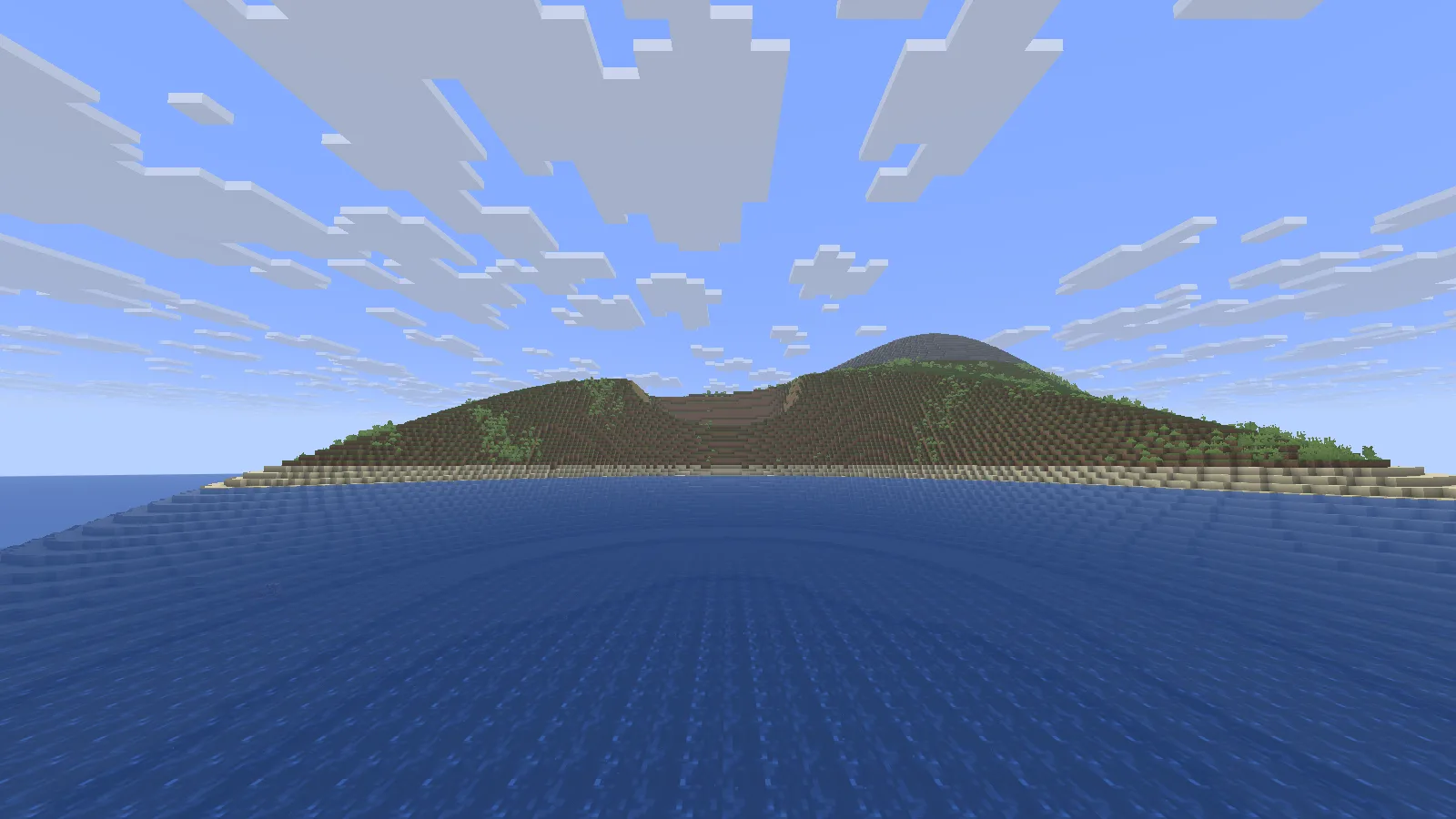
The eastern water approach to the bay. Java 26.2, viewed in Spectator with default resources.
From water level, the terrace sits across the bay with open space in front of it. A small pier could lead toward that face, while steps connect it to the landing above. Add those structures yourself; the download supplies the terrain canvas.
Export and open a separate copy
To create a Minecraft world from your edited project, use File → Export → Export as Minecraft map, or Ctrl+E, and give the output a new world folder. Our export uses WorldPainter's Minecraft 26.1 or later format and starts in Creative; the game version used to open and inspect it here is Java 26.2.
To try the supplied terrain, choose Modonix Java 26.2 world example in Files. Keep the original ZIP, then extract a copy into the Java saves directory so that saves/Modonix Harbor Island/level.dat is directly inside the world folder. Open it from Singleplayer. If Minecraft offers an older-version warning, choose Create Backup and Load and let the first load finish. Keep the backup until you have checked the shoreline, spawn and building area. Store the editable .world files separately with your WorldPainter projects.
Treat Harbor Island as a building canvas. Add a short pier, place a compact storehouse on the landing, or use the hill for a lookout. Keep a separate export when trying a different shoreline so you can compare the space around the same planned build.
Use this tool
This resource is hosted on its own website.
Open tool ↗www.worldpainter.net
Comments & questions
Share what worked, ask for help or reply to another player.
No comments yet. Share what worked for you.