
Before replacing a Bedrock add-on, keep the exact old archive and compare it with the proposed new one. A newer filename is not enough: pack identities, content IDs and dependency declarations can change independently. Pack file inspector shows those differences without changing either input.
Choose old and new in the right order
- Select Compare an update under Choose a task.
- Put the archive you currently use in Old export, and the proposed replacement in New export.
- Select Inspect files. Review both individual reports, then Old and new export comparison.
- Open Observed values for identity and dependency findings. Enable Show unchanged files to include exact matches in the file list.
Get the practice archives from the texture-path lesson.
To learn the controls, use bedrock-pair-broken.mcaddon as old and bedrock-pair-corrected.mcaddon as new from the lesson files. Both are tiny static examples, not playable releases.
Read the two-change example
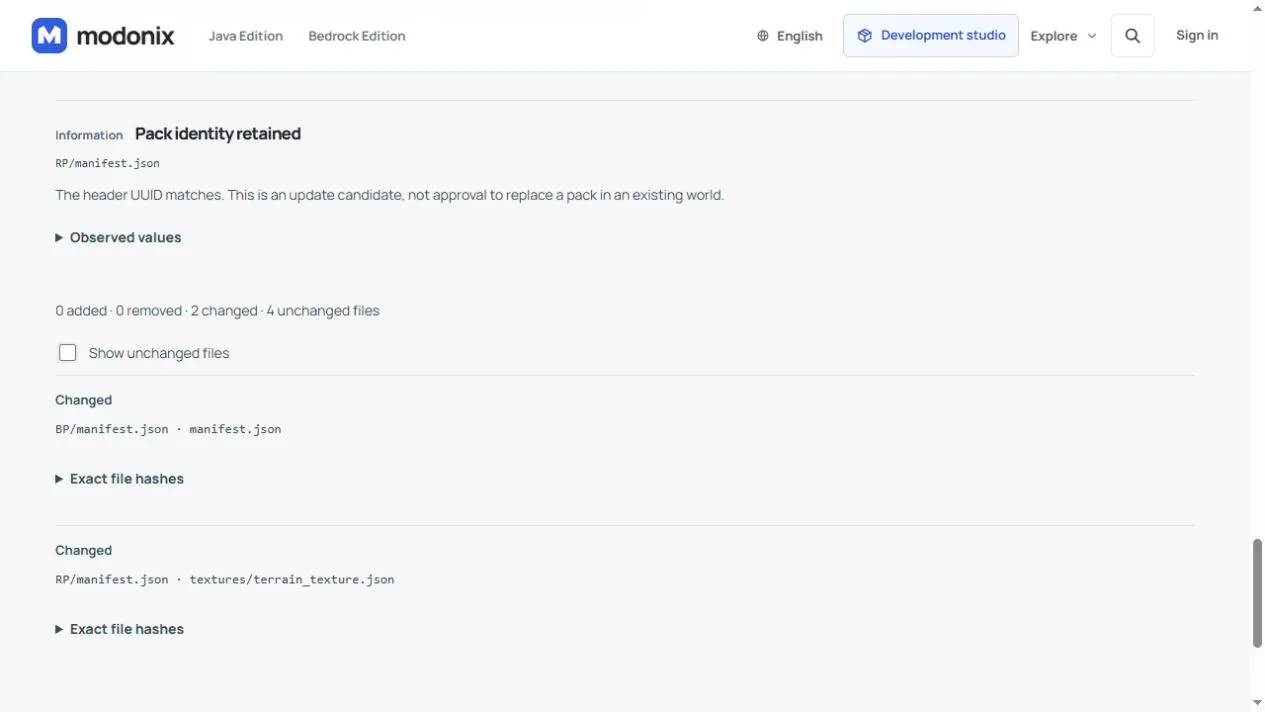
The comparison retains both header UUIDs and reports 0 added · 0 removed · 2 changed · 4 unchanged files. The two changes are:
BP/manifest.json: its RP dependency request changes from[9,0,0]to the supplied RP version[1,0,0].RP/textures/terrain_texture.json: the texture path changes fromtextures/blocks/missing_tiletotextures/blocks/tile.
The block definition, RP manifest, geometry file and PNG are unchanged. Expand Exact file hashes to check the old and new bytes for a row. A file marked Changed may have only a JSON text change; the label does not measure its gameplay impact.
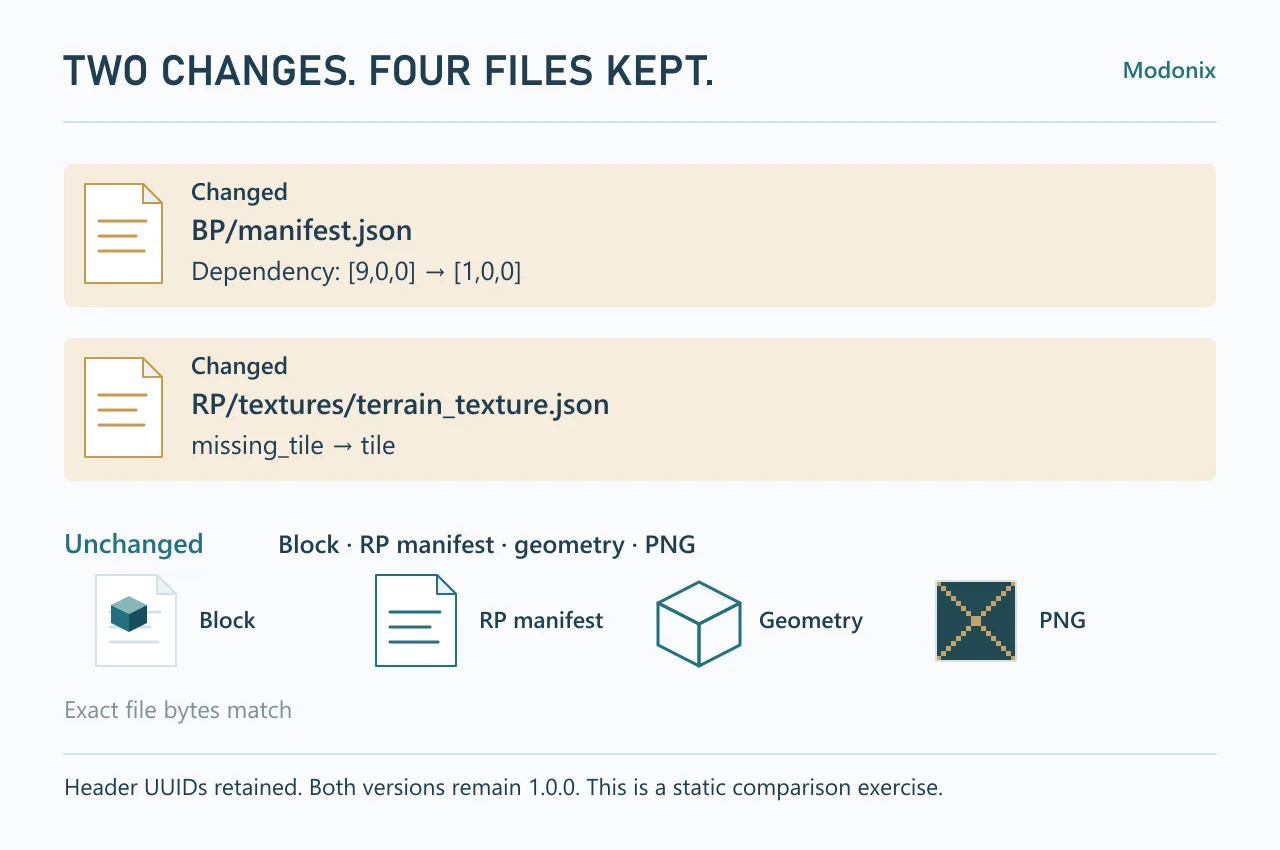
Both pack versions intentionally remain 1.0.0 in this exercise. It demonstrates a file comparison, not a ready-to-import update. For an actual release, review the version progression and the paired dependency versions as well as the corrected files.
Identity is the start of the decision
Pack identity retained means a matching header UUID was found. It does not promise that old blocks or items survive. Review module changes, namespaces, removed identifiers and added identifiers too. A changed UUID may make an independent pack; when a unique old/new match is absent, the inspector reports unmatched packs and added or removed files rather than inventing a migration.
A dependency UUID should refer to the intended pack's header UUID, with the intended version. Raising the version number alone cannot repair a texture path or restore a removed block ID. Keep the old archive and an editable source backup before making changes.
Compare a real constructor update
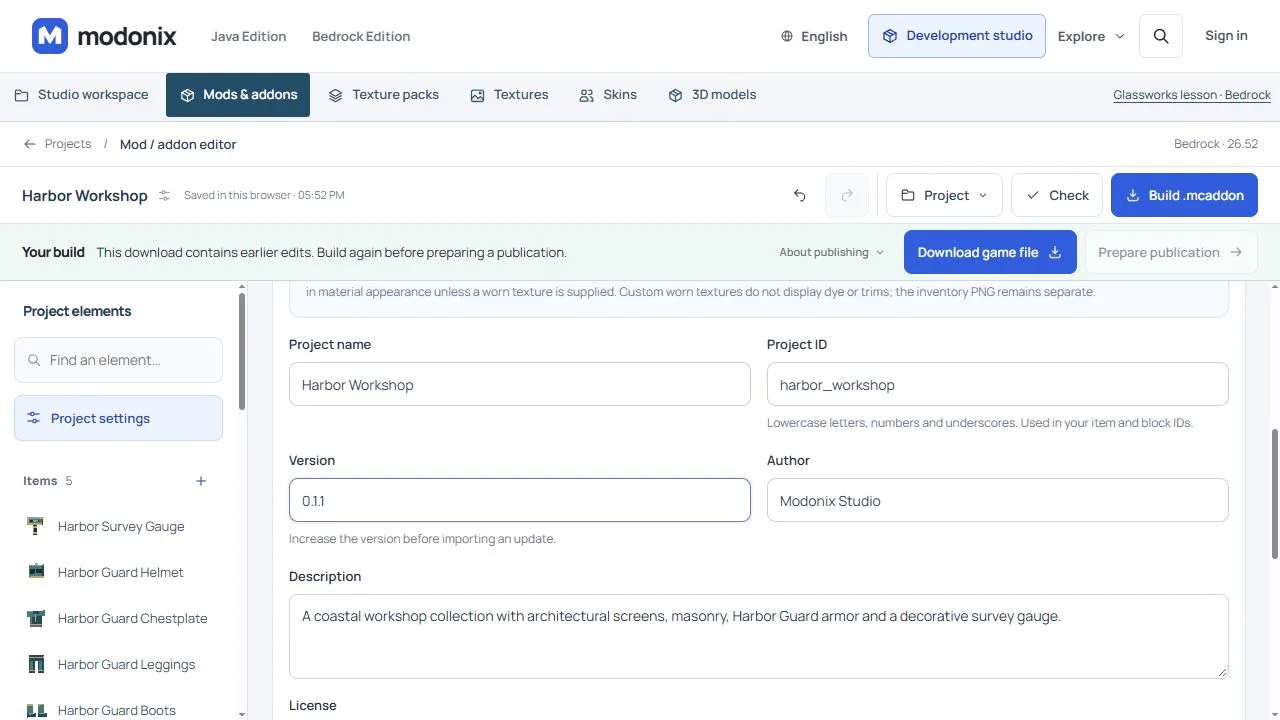
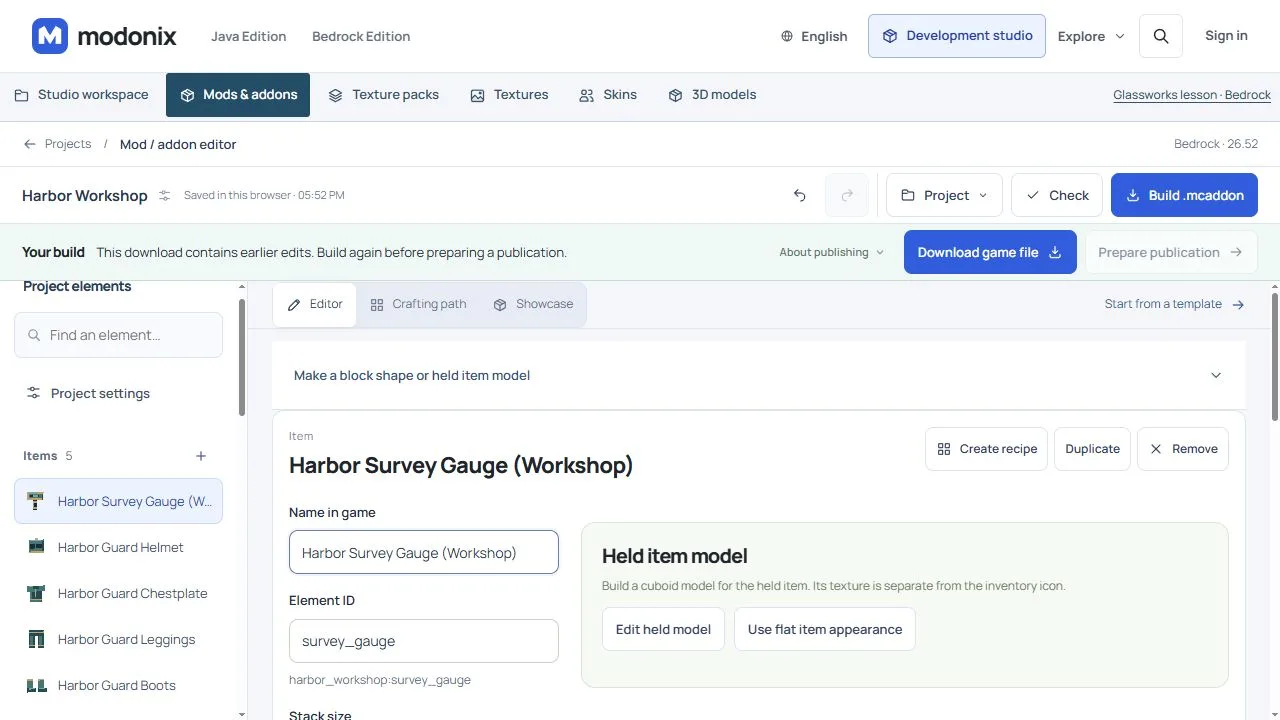
A small label change makes the update easier to follow without mixing in new recipes or artwork. In Harbor Workshop, the project version goes from 0.1.0 to 0.1.1, and Harbor Survey Gauge becomes Harbor Survey Gauge (Workshop). Its Element ID stays survey_gauge; the project ID stays harbor_workshop. The item is renamed for players, not replaced with a different item identifier.
To follow the same route with your own project:
- Before editing, use Project → Save project JSON and keep the downloaded source alongside the old game archive. Keep them in separate old/new folders so a similarly named download cannot overwrite the only backup.
- In Project settings, change Version. Select the item and change only Name in game. Leave Element ID, project identity, recipes and artwork unchanged for this small comparison. New project or an independent duplicate is a different task from updating the existing project.
- Save the new constructor JSON, run Check, then use Build .mcaddon and download the finished file. Keep the old archive too; renaming its filename is not a version update.
- Return to the inspector. Put the original archive in Old export and the newly built archive in New export, then select Inspect files. Read the version and identity findings before looking at the number of changed files.
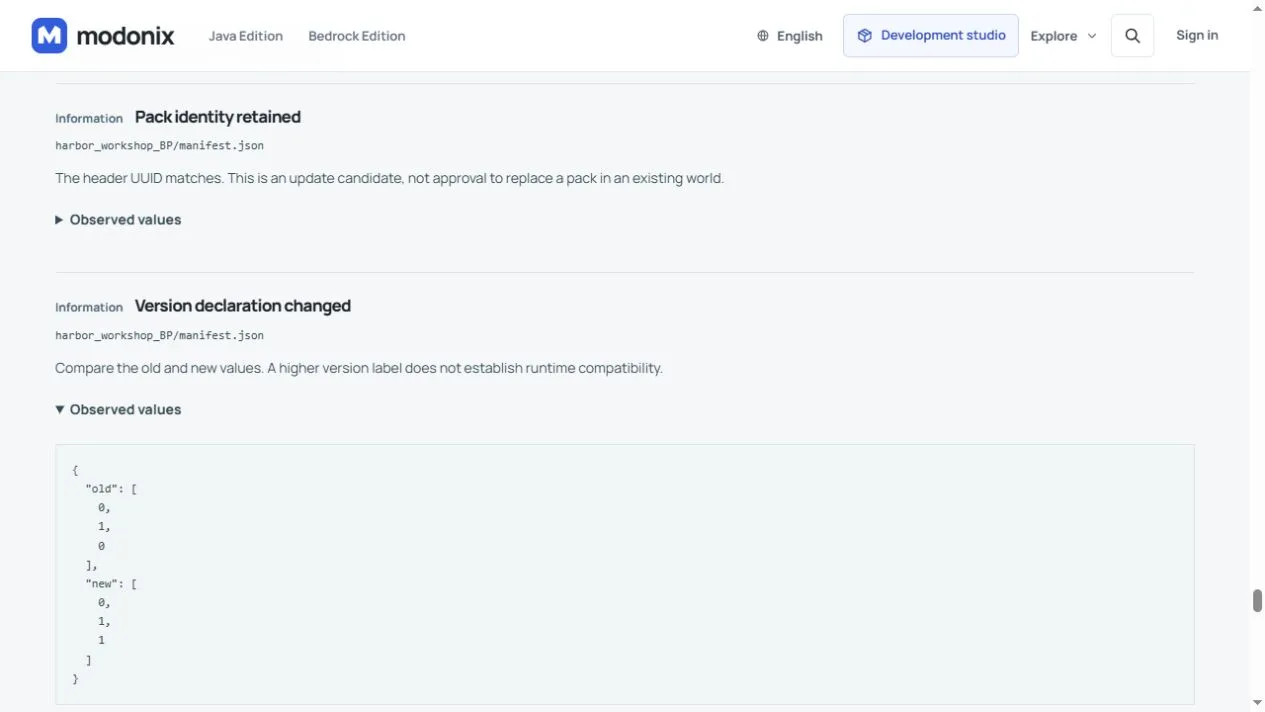
For this pair, the result is 0 added · 0 removed · 4 changed · 69 unchanged files. Both behavior-pack and resource-pack header UUIDs are retained. Their versions advance from 0.1.0 to 0.1.1. The changed rows are:
| Changed file | What to inspect |
|---|---|
harbor_workshop_BP/manifest.json |
Header and module versions become [0,1,1]; the resource-pack dependency keeps its UUID and requests [0,1,1]. |
harbor_workshop_RP/manifest.json |
Header and module versions become [0,1,1], with the same pack identity. |
harbor_workshop_RP/texts/en_US.lang |
The gauge's displayed name changes; its item identifier stays the same. |
modonix-project.json |
The included constructor source records the version and item-name edits. |
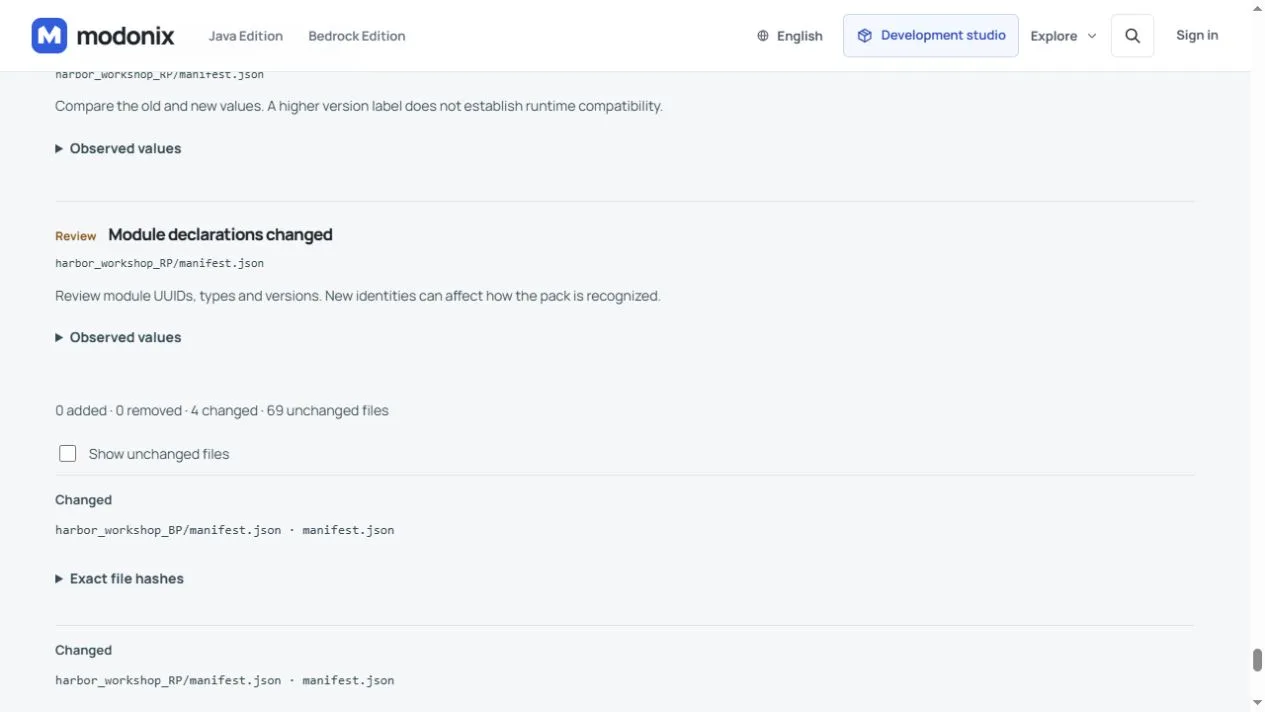
The remaining files match exactly in this comparison. That fits a label-only change: no new model, texture, block or recipe is needed. It does not show how the update behaves in a saved world.
Investigate a difference you did not intend
- A different header UUID: check whether you opened an independent copy or changed project identity. A matching title or project ID is not a substitute for pack identity.
- The new version is missing: first confirm that the downloaded file is the newly built archive, then inspect its manifest version. Check the saved constructor JSON if the selected file and the editor's version display disagree. Do not fix the mismatch by renaming the archive or changing numbers inside it.
- A resource dependency requests the old version: compare the BP dependency with the actual RP header version. Correct the constructor project and build again; increasing only one manifest version is not a complete paired update.
- A recipe, texture or element ID changed unexpectedly: open the exact row and its hashes before proceeding. Return to the source and undo the unintended edit; a low changed-file count is not a reason to ignore it.
To return to the earlier editing state, first retain both source downloads, then use Project → Import project JSON to open the old one. If the browser asks Open this project?, confirm only when the newer source is safely backed up. Recheck the version, original item name and element IDs after reopening. Restoring a browser project does not restore a game world, uninstall an add-on or reverse changes already made inside a world.
Connect the comparison to your own project
If you author in Modonix, save the editable constructor JSON separately from the game archive. Make the intended changes in that project, export a new game file, then select the two actual archives here. The inspector compares those files; it does not save a constructor project, build an export or update a world for you. The Ridgeway constructor lesson explains that source/export workflow.
Only after reviewing the differences, follow the existing-world update guide and try the candidate in a copy of the world. Check existing placed blocks, stored items and the behavior you rely on. Static checks do not evaluate scripts, guarantee version compatibility or establish that world migration is safe.
Comments 0
Share what worked, ask for help or reply to another player.
Use your Modonix account to join the discussion and manage your comments.
Sign in to commentNo comments yet. Share what worked for you.