
The newest file is not always the one you need. If you are keeping a world on an older version or using a particular loader, the right choice may be a few releases down the list. Here is how to find it without downloading several guesses.
Start with the game you have open
Check your edition and full game version. Java and Bedrock both run on Windows, so “PC” is not enough to choose between them. For Java mods, also check the loader: Fabric, Forge and NeoForge are separate choices.
Open a project's Files section and filter for that setup. This example shows FerriteCore narrowed to Minecraft 1.20.1 and Forge.

Read the selected Bedrock release
For a Bedrock add-on, check the game version, device route and any required experiments or scripts. WorldEdit: Bedrock Edition uses the same WorldEdit.mcaddon filename across several releases, so choose by the release row rather than the name alone.
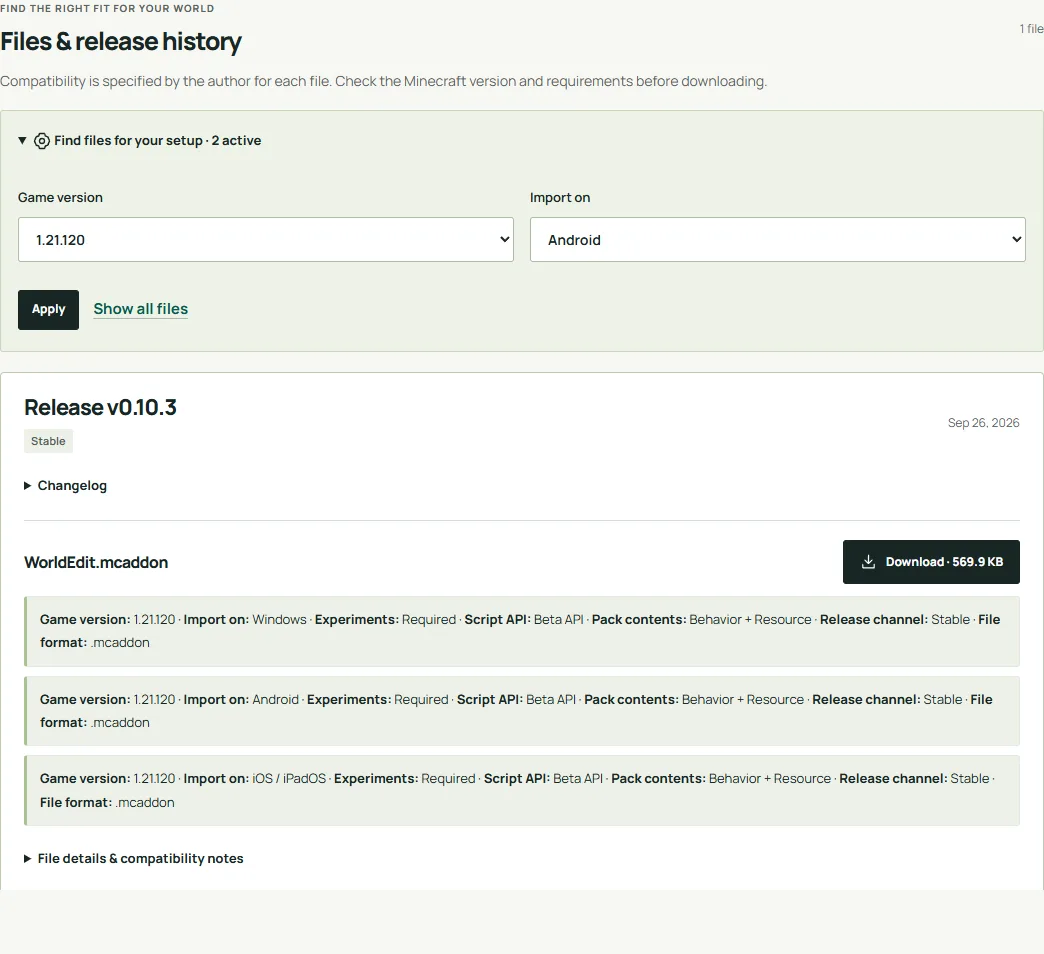
Use the filters to narrow the file list before downloading. Then read the matching row: the same filename can appear in several releases with different requirements.
Release, Beta, or Alpha?
For an everyday world, start with a compatible Release, sometimes labeled Stable. Beta and Alpha are preview builds for players who want to try changes before a regular release; keep a world copy and expect features to change. A Release label still does not replace the game-version and loader checks.
A stable map and a newer beta are separate choices
On Fetchr’s file history, start with your game version and then check the channel. A stable world for Java 1.21.10 and a beta world for the 26.x generation are not interchangeable just because both say Fetchr.
Choose an older compatible release if you intend to stay on the older game. If you want the beta, give it a separate instance and world copy. Do not open the only copy of a long-running world in another version just to find out whether it loads.
When the filters return nothing
An empty result means there is no file on this page matching that combination. Check for a mistaken loader or edition, but do not remove an accurate requirement just to make a download appear. You can keep your current setup, choose a different project, or deliberately create a separate compatible installation.
Follow the file's own installation route
A mod JAR, a world and a source project have different next steps:
- A Fabric mod goes in its instance's mods folder; see our installation guide.
- A Fabulously Optimized MRPACK is imported through a compatible launcher.
- A saved structure is placed inside a world.
- A creator source template is a project to edit and build.
If no file matches, keep your existing setup and look for another suitable release or project. For a world you care about, make a copy before changing its mods or packs.
Comments & questions
Share what worked, ask for help or reply to another player.
No comments yet. Share what worked for you.